On this page
What you will do#
Create an account, subscribe to a product, add it to the app that carries your key and send the first request. You use the Sandbox environment, so nothing you send reaches live data.
Before you start#
- A client that can make HTTPS requests. The examples use cURL, Node.js and Python.
- An e-mail address you can read: the account is usable only after you open the link sent to it.
- The product you want to call. A call succeeds only on a product your app is subscribed to, and some products need the provider's approval, or your KYC or KYB, before the subscription becomes active.
The screenshots are taken on the platform's development environment, so the gateway addresses they show end in -dev or -stgdev. Use the address that the product page shows you.
Step one: create an account#
- Open Create an account. Fill the first name, last name, username, e-mail address and a password of 8 to 42 characters with a digit, a lower-case letter, an upper-case letter and one of
# ? ! @ $ % ^ & * -. - Choose the Account Type: Individual for yourself. Corporate is for a company, and it needs a company e-mail address: the first person to register a company becomes its organisation admin, and the next colleague's registration waits for that admin's approval (account and organisation).
- Accept the terms and press Sign up.
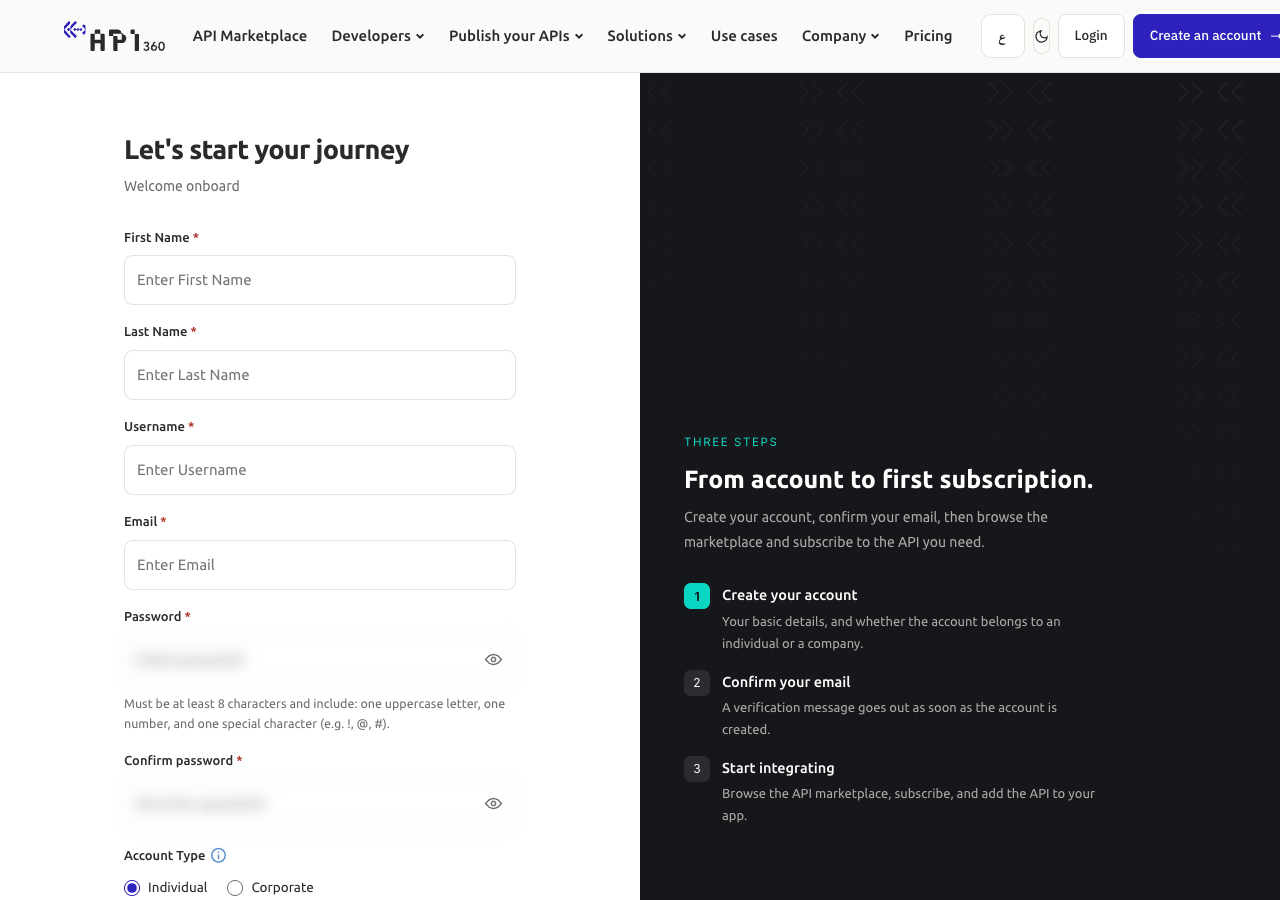
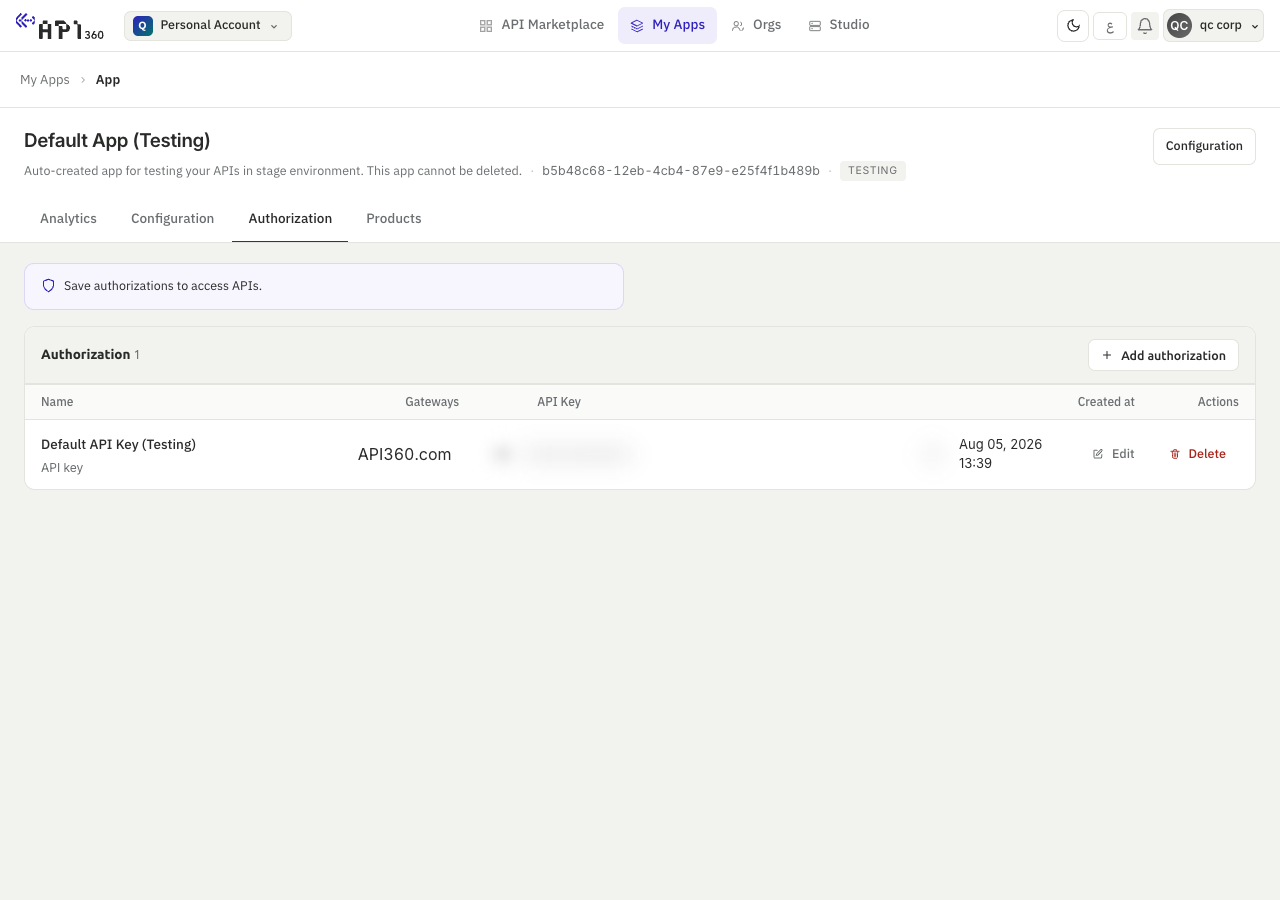
Registration creates two apps for you, Default App (Testing) for Sandbox and Default App (Prod) for Production, each with one key.
Step two: confirm your e-mail address#
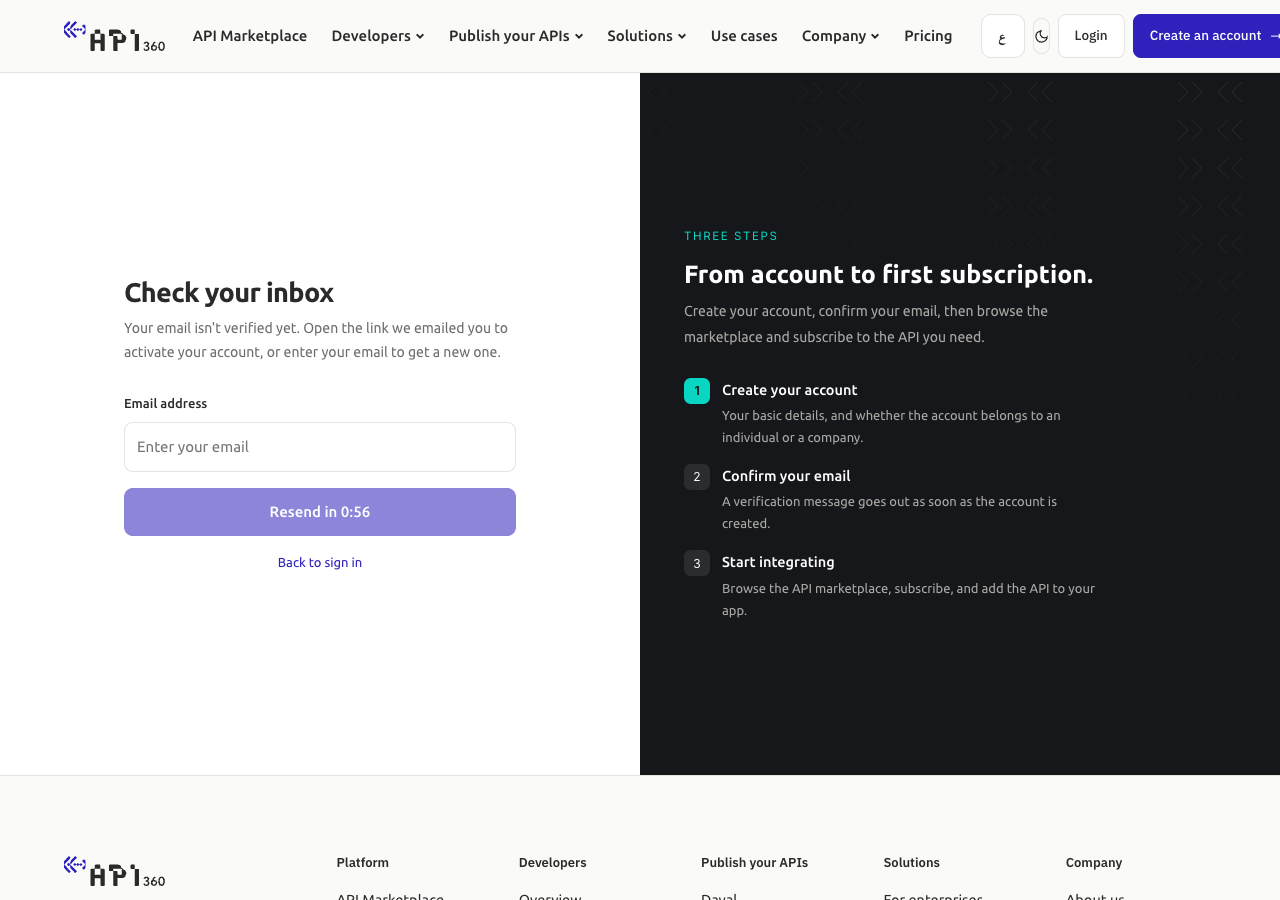
Open the link in the e-mail the platform sent you. It is valid for 24 hours and opens a page that confirms the address and takes you to sign-in. If no e-mail arrives, try to sign in: the platform sends you to the Check your inbox page, where you enter your e-mail address and request a new link. It allows one e-mail a minute.
Step three: sign in#
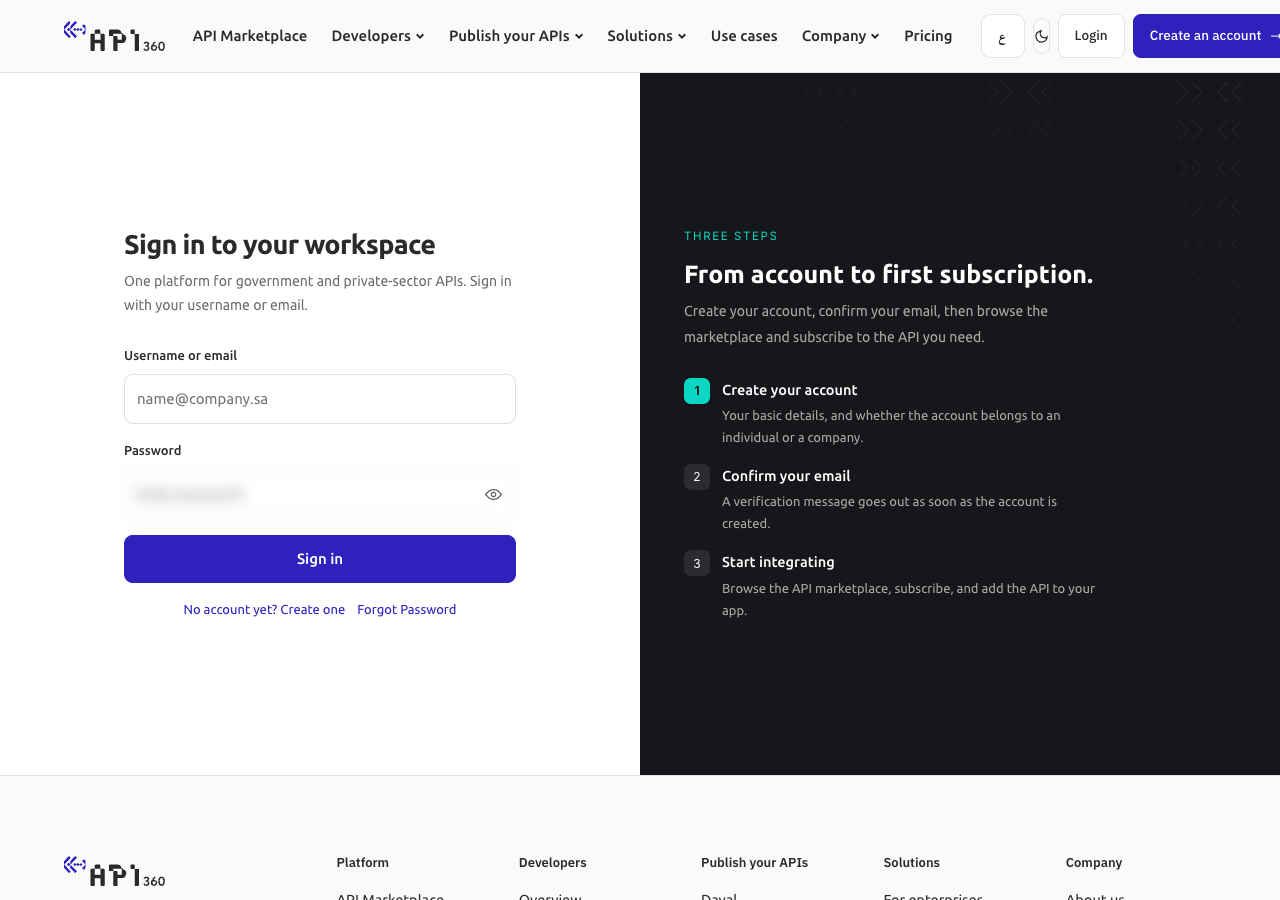
Sign in with your username or e-mail address and your password. You arrive in the marketplace.
Step four: subscribe to a product#
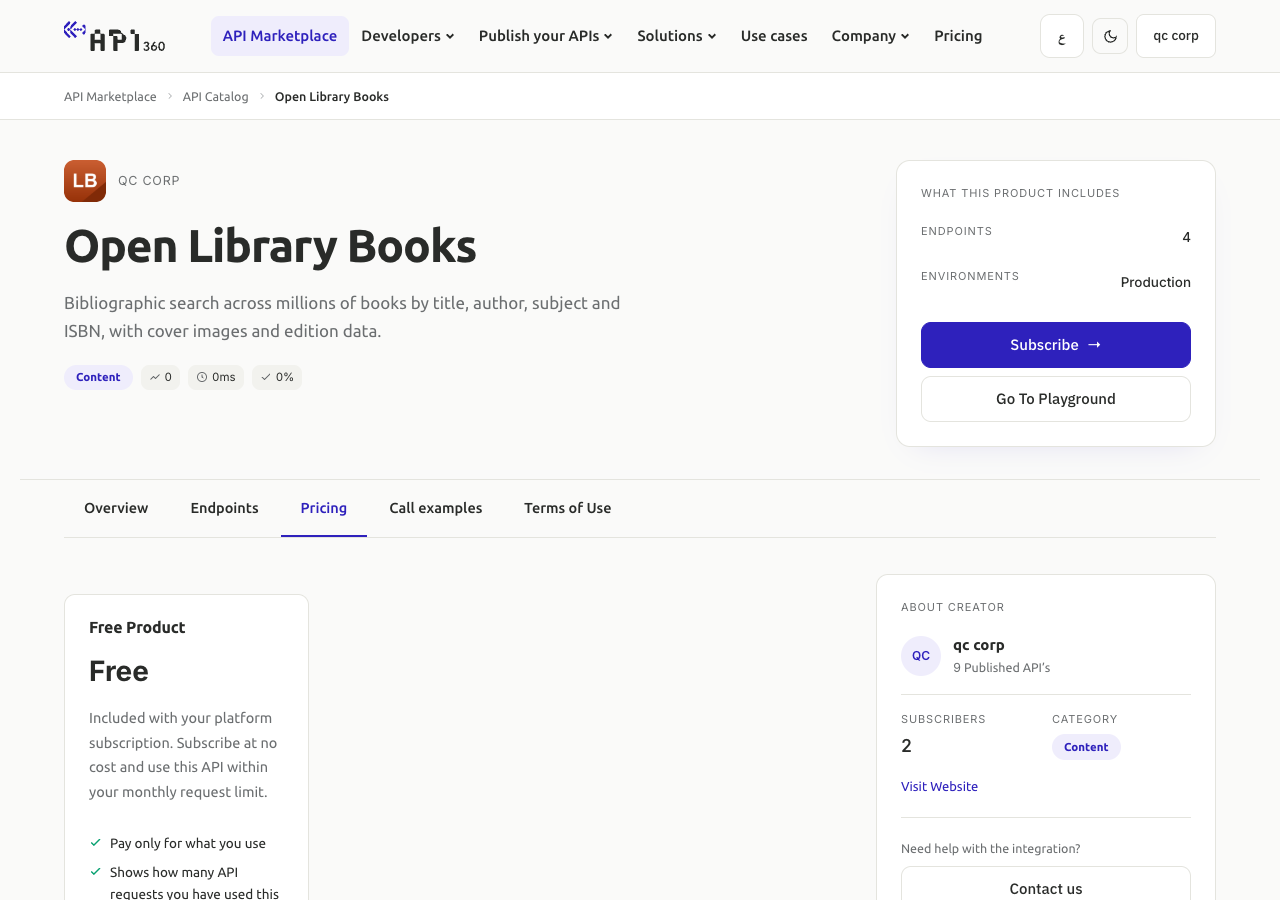
- Open a product in the marketplace and its Pricing tab. The tab shows what the provider offers: a free product, a package, a plan priced per request, or prices per endpoint.
- Press Subscribe and follow the dialogs. A free product becomes active at once when you have an active platform plan; if you have none, Subscribe takes you to the pricing page to choose one (plans). A paid product asks you to review and confirm, then to pay (payments). A product whose plan needs the provider's approval shows Approval Requested until the provider decides.
Step five: add the product to your Testing app#
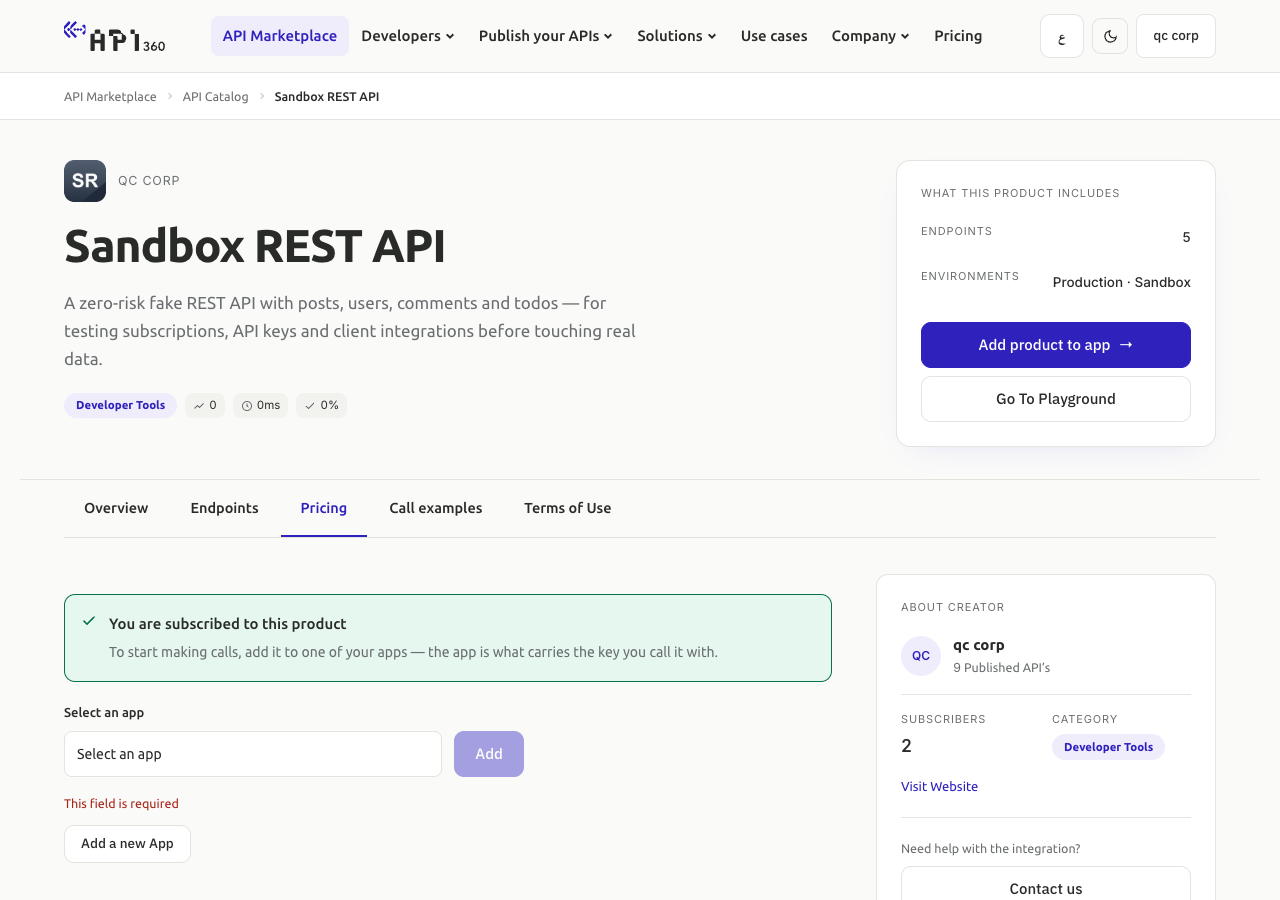
When the subscription is active, the Pricing tab says You are subscribed to this product.
- In Select an app, choose Default App (Testing) and press Add. If the Testing app is not in the list, the provider has not enabled Sandbox for this product: choose Default App (Prod) and use the Production address in step seven.
- The product now appears in the Products tab of that app.
Step six: copy the key#
Open My Apps, then the app, then Authorization. Press the eye button to read the key or the copy button to copy it.
Step seven: send the first request#
Keep the key in an environment variable on your server, never in the code. Then set the address of the product: the gateway address of the environment, the product's slug, then /v and the major version of the endpoint and its path. In one line it is https://gate-test.api360.sa/<product-slug>/v<n>/<endpoint> for Sandbox. The product page shows all of it: the Request URL in the playground, or Call examples.
export API360_KEY="REPLACE_WITH_YOUR_KEY"
export API360_BASE_URL="https://gate-test.api360.sa/<product-slug>"
export API360_PATH="/v1/<endpoint>"
Send the key in the api360key header:
curl -sS -o /dev/null -w "%{http_code}\n" "$API360_BASE_URL$API360_PATH" \
  -H "api360key: $API360_KEY"
The examples print only the status code. Remove -o /dev/null -w "%{http_code}\n" from the cURL command to see the product's own response. For the Production environment use the Production app's key with https://gate.api360.sa/<product-slug> (Sandbox and Production).
Check that it worked#
200and the product's response: the gateway accepted your key and your subscription. Every response carries anX-Kong-Request-Idheader. Keep it: support needs it to find your call.403with{"message": "No active subscription for this product"}: the gateway did not match your key to a subscription. Check, in this order, the host, the header nameapi360key, that the key belongs to the app of that environment, and that the product is in the app's Products tab. The same answer comes back for an unknown key.
# no valid key: the answer of a call the gateway cannot match to a subscription
curl -sS -o /dev/null -w "%{http_code}\n" "$API360_BASE_URL$API360_PATH" -H "api360key: not-a-real-key"
- A request sent a few seconds after you added the product, or created a key, can be refused: the gateway learns of a change a short time after you make it. Wait a minute and send it again.
Next steps#
- Sandbox and Production: which key and which address to use.
- Create an app and manage its keys
- Errors, status codes and retries
- Try an endpoint in the playground