On this page
What you will do#
Subscribe to a product, get it approved or pay for it when the plan asks for that, add it to an app, and later renew or cancel it. Whether the whole path is one minute or several days depends on the product: a free product is active at once, and a product that needs the provider's approval waits for the provider's decision.
Before you start#
- You are signed in and your account is confirmed (from sign-up to your first call).
- A subscription belongs to the context you are in: your personal account, your organisation or a department. Check the switcher at the top left before you subscribe (account and organisation).
- If the product requires KYC or KYB, your form must be complete first.
- Prices on the pricing page and on product pages are shown without VAT. The payment page adds VAT and shows the total before you pay.
Step one: know the two kinds of plan#
| Platform plan | Product plan | |
|---|---|---|
| What it is | Your own plan on the platform, one active at a time. | What you buy from a provider for one product. |
| Needed for | Subscribing to free products. A paid product needs no platform plan. | Every product that is not free. |
| Where you find it | The Pricing page in the header, and Platform Subscription in My Apps. | The Pricing tab of the product page, and afterwards My Subscriptions and Approvals. |
| What it gives | A shared request allowance for your free products, and some features such as departments. | The right to call that product, with the quota of the plan you chose. |
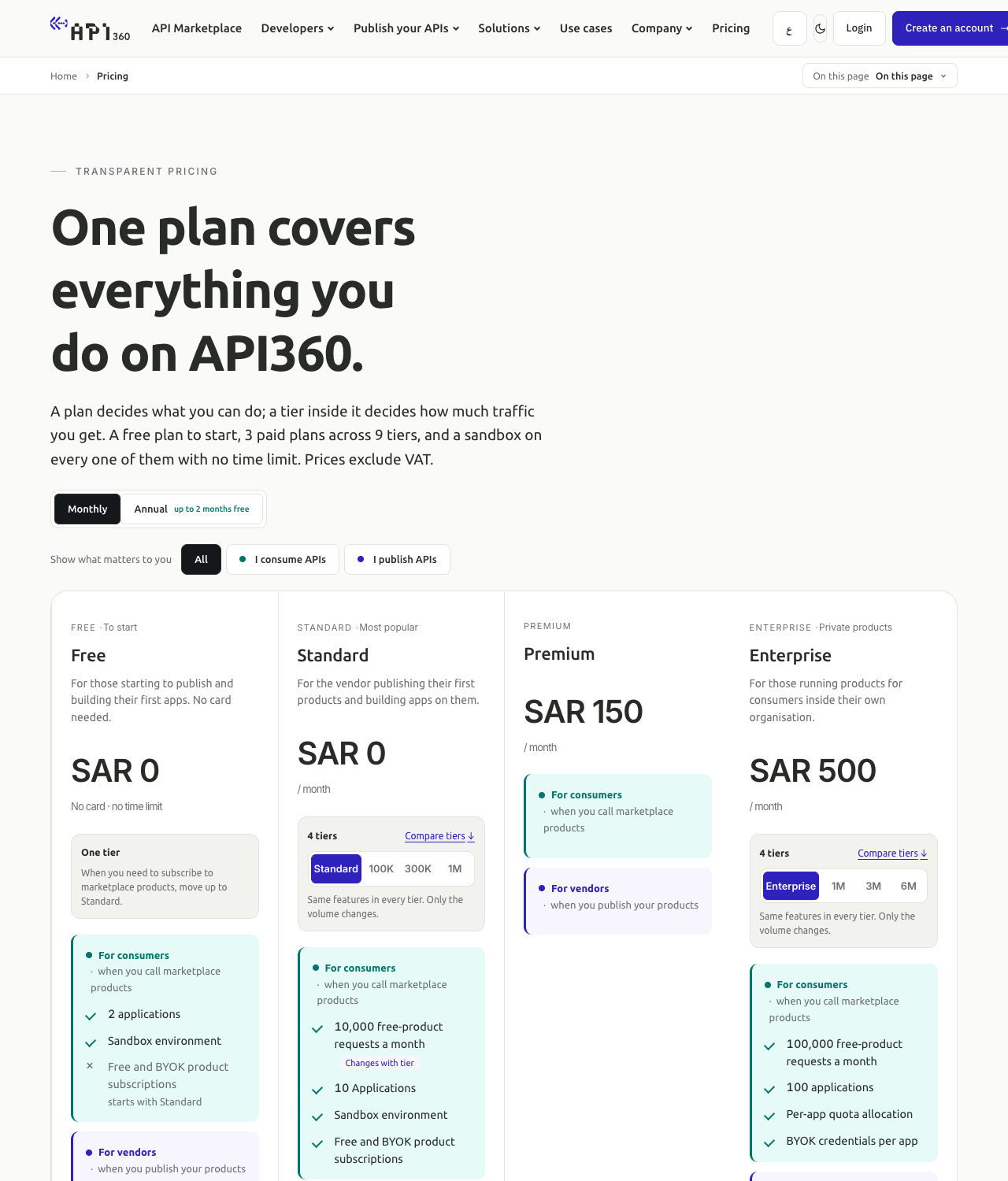
A platform plan has tiers and a billing cycle, monthly or annual. A plan that costs nothing is activated at once with Activate now; a plan with a price asks you to pay with Subscribe & Pay. The list of plans, their prices and their request allowances belongs to the platform and changes over time, so read it on the pricing page rather than here.
Step two: get a platform plan, only if the product is free#
When you press Subscribe on a free product and you have no active platform plan, the portal tells you that a platform subscription is required and sends you to the pricing page.
- Choose a plan and a tier, then Monthly or Annual.
- Press Activate now (price zero) or Subscribe & Pay (priced; see payments).
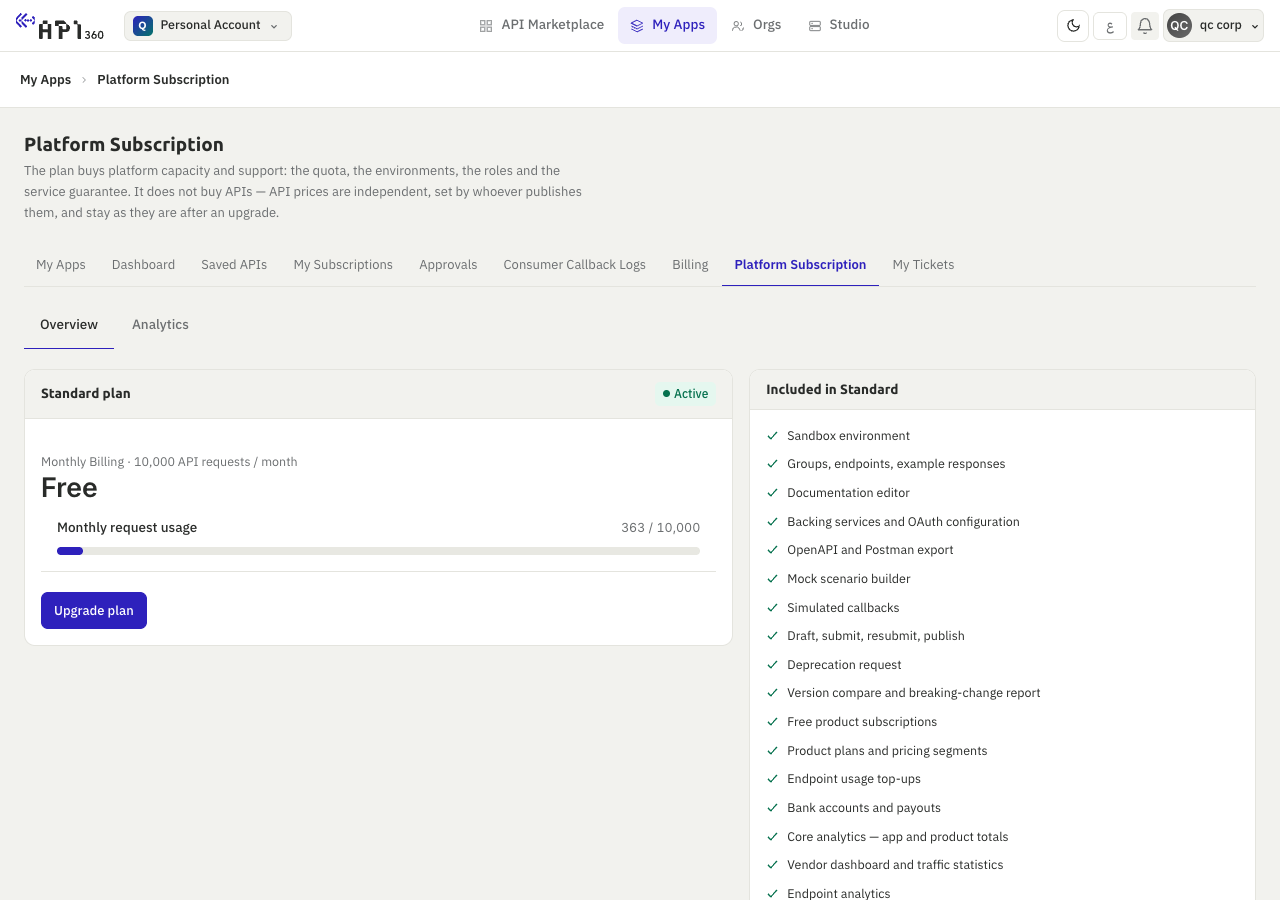
- Open My Apps, then Platform Subscription, to see the plan, its status and its expiry date.
You can move to a higher tier at any time and it applies at once. A move to a lower tier waits for the end of the current cycle. If you cancel the plan, access continues until the end of the term. Nothing renews by itself: when the term ends the plan expires, and you subscribe again.
Step three: subscribe to the product#
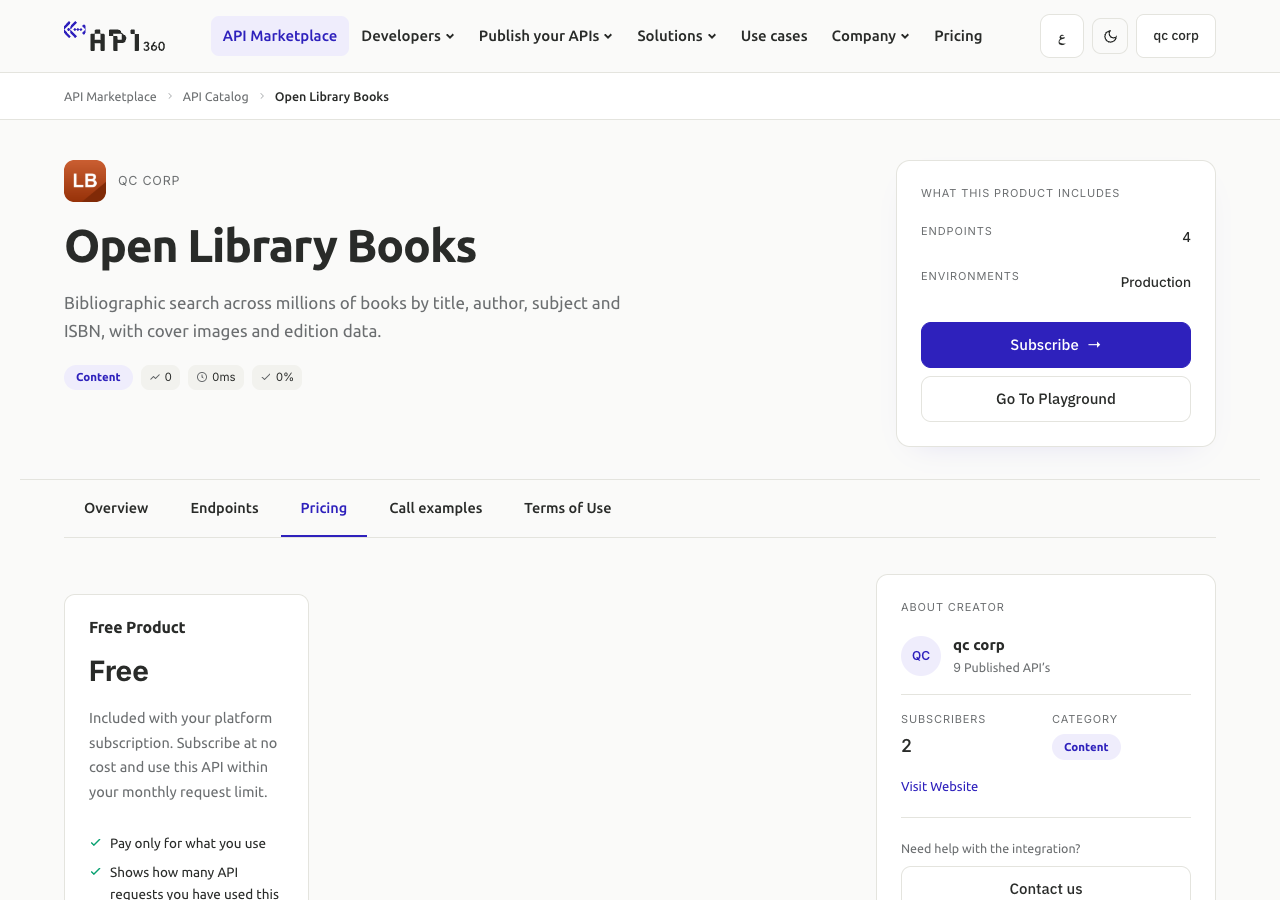
Open the product in the marketplace, choose the Pricing tab and press Subscribe on the card you want.
| What the provider offers | What you do | What happens next |
|---|---|---|
| A free product | Press Subscribe. | Active at once. The portal shows You have successfully subscribed. |
| A package | Press Subscribe, then Review & Confirm with the terms ticked. | You go to the payment page, or the request waits for approval first. |
| A plan priced per request | In Define your requests, enter your expected number of requests. The price follows the pricing segment. | The same. |
| Prices per endpoint | Open View Details, tick the endpoints and the quantity of each, then Review & Confirm. | Always waits for the provider's approval. |
Some products ask for more first. A product that requires KYC or KYB stops you with Please complete your KYC/KYB from profile. A product with prerequisite documents opens Subscription Prerequisites: upload each required document as a PDF, or use one saved in your profile. A product that needs a licence asks for the licence file and its expiry date.
Step four: wait for approval, or pay#
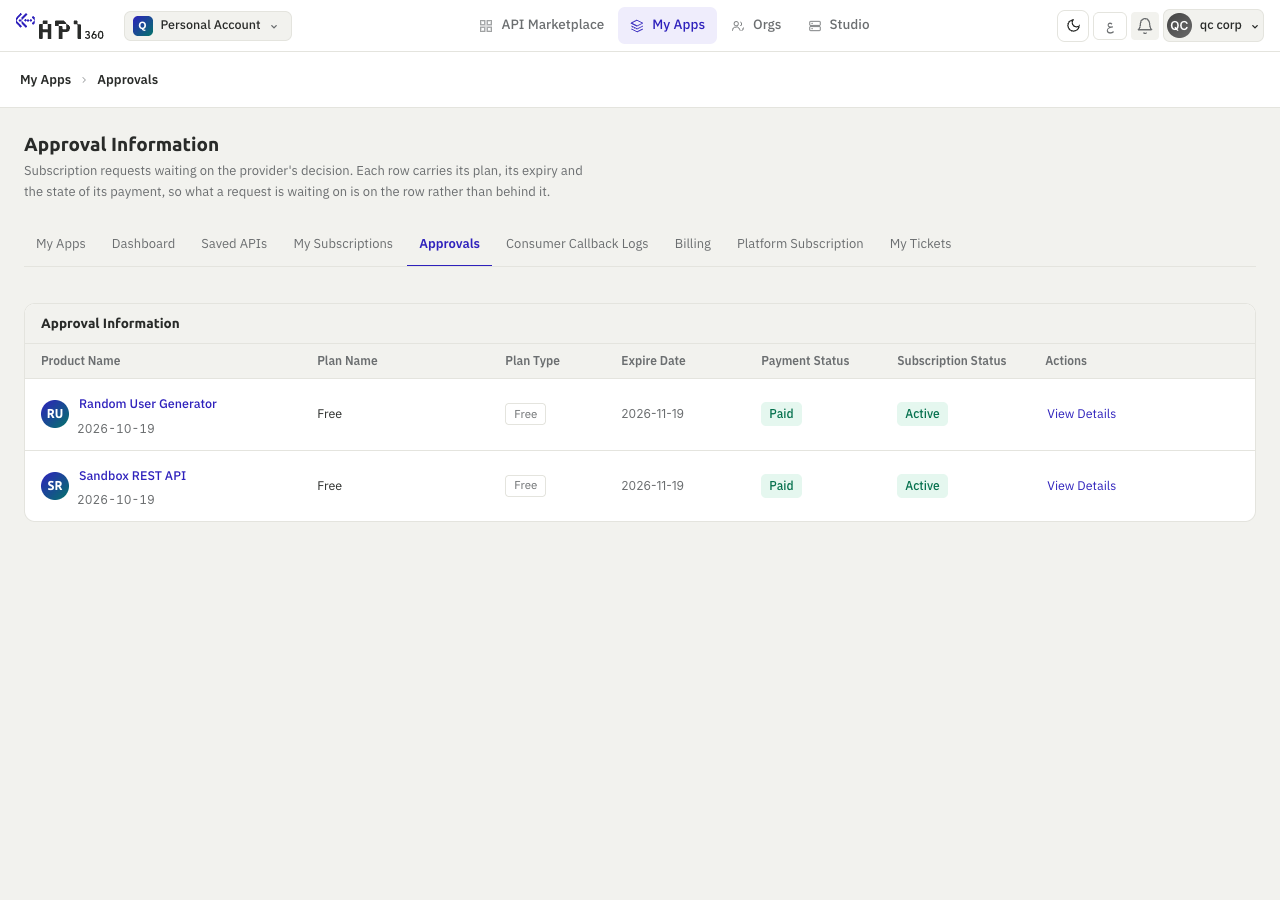
Open My Apps, then My Subscriptions or Approvals. Both list every subscription with its status.
| Status in the portal | Meaning | What you do |
|---|---|---|
| Pending Approval | The provider has not decided. | Wait. You are notified when it decides. |
| Approved, Pending Payment | The provider accepted. Payment is still due. | Open the product and pay. |
| Rejected | The provider refused, with a reason. | Read the reason and press Retry to open the product page again. |
| Not active | Created and not paid yet. | Pay. |
| Active | Paid, or free. | Add the product to an app. |
| Paused | The subscription reached its expiry date. | Renew. |
| Cancelled | You cancelled it. | Subscribe again if you need it. |
Step five: add the product to an app#
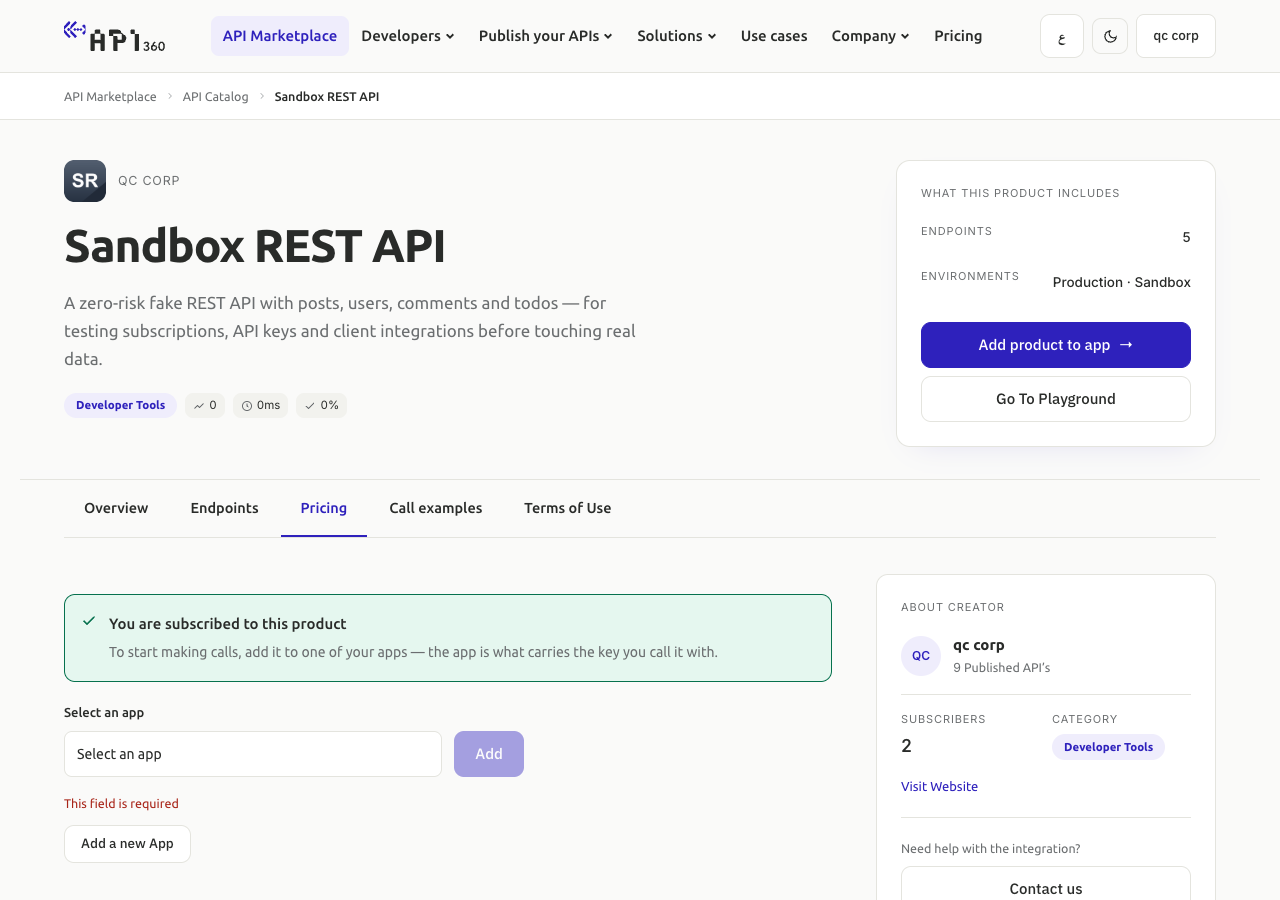
A subscription is not yet access. The app carries the key, so add the product to an app: on the product page choose the app in Select an app and press Add, or open the app and use its Products tab (apps and keys). In an organisation or a department, a product that is not free asks you for the number of requests to give to the app, a start date and an expiry date, taken from the subscription's quota.
Step six: renew or cancel#
In My Subscriptions, View Details shows the dates, the payment, the invoice when there is one, and, within 29 days of expiry, a countdown.
- Renew is offered when a subscription is Paused or suspended. Renewal is a new request: you choose the plan again, the price is the price of today, and KYC, KYB and documents are checked again. If the plan requires approval, the provider approves it again. Nothing renews or charges by itself.
- The platform reminds you before the expiry date, in the portal and by e-mail: 14, 7 and 1 days before, and 30 days before if the subscription runs for longer than a month. The reminder one day before carries a Renew link. On the expiry date the subscription is paused and the product stops answering.
- Cancel is offered on an active subscription. It ends access at once, for every app of the subscription. Confirm only when you want calls to stop now.
Check that it worked#
- My Subscriptions lists the product with the status Active.
- The product page says You are subscribed to this product, and the app's Products tab lists the product.
- A call with the app's key reaches the product (first call). A call that gets
403withNo active subscription for this productmeans the key is unknown, or the product is not in the app, or the subscription is not active.