Before you start#
- You can open the playground and read the endpoints, parameters, examples and code snippets without an account. To send a request you need to be signed in, subscribed to the product, with the product added to an app of the environment you test (from sign-up to your first call).
- Know which environment you want: the playground sends the request to the gateway address of the environment you choose, with the key of an app of that environment (Sandbox and Production).
Steps#
- Open the product in the marketplace and press Go To Playground. A button beside an endpoint in the Endpoints tab opens the playground on that endpoint.
- At the top right, choose the Environment and the Version. The switch lists only the environments the product offers.
- In the list on the right, choose an endpoint. The bar at the top shows the method and the Request URL.
- Open the App tab. Choose the app in App: the list holds only your apps of this environment that the product is added to. Choose its key in Authorization, and the key fills the field below. What the field holds is exactly what is sent, so you can also type a key there.
- Open Params and fill the path parameters, which are required, and the query parameters. Headers holds the headers the provider defined for the endpoint, and Body a JSON editor with the provider's example. The body is off for
GET,HEAD,DELETEandOPTIONS. - Press Start Testing. The button appears when you are signed in and an app of the environment is subscribed to the product.
- Read the answer under Results: the status, the time, the size and the body, with Copy response. Response Headers shows the headers the browser lets the page read.
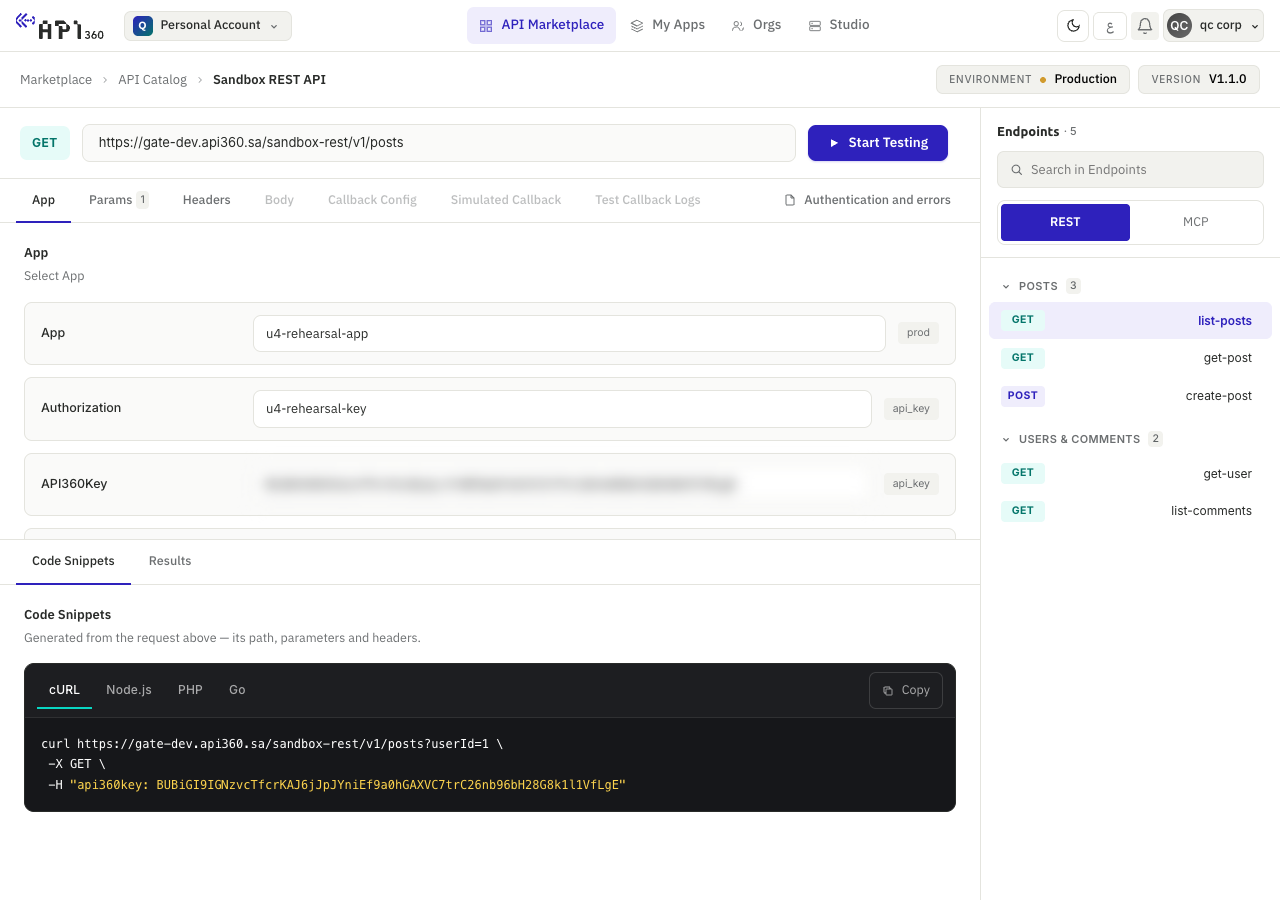
Under Code Snippets, the same request is written in cURL, Node.js, PHP and Go. In the playground the snippet carries the key you selected, so do not paste it into a public place. Swagger JSON and Postman Collection, under the results, download the product's definition.
The request leaves your browser and goes straight to the gateway: the portal is not in between, and a failed call is not retried.
Check that it worked#
Results shows the status 200 and the product's response. The cURL snippet of the same request gives the same answer.
If something goes wrong#
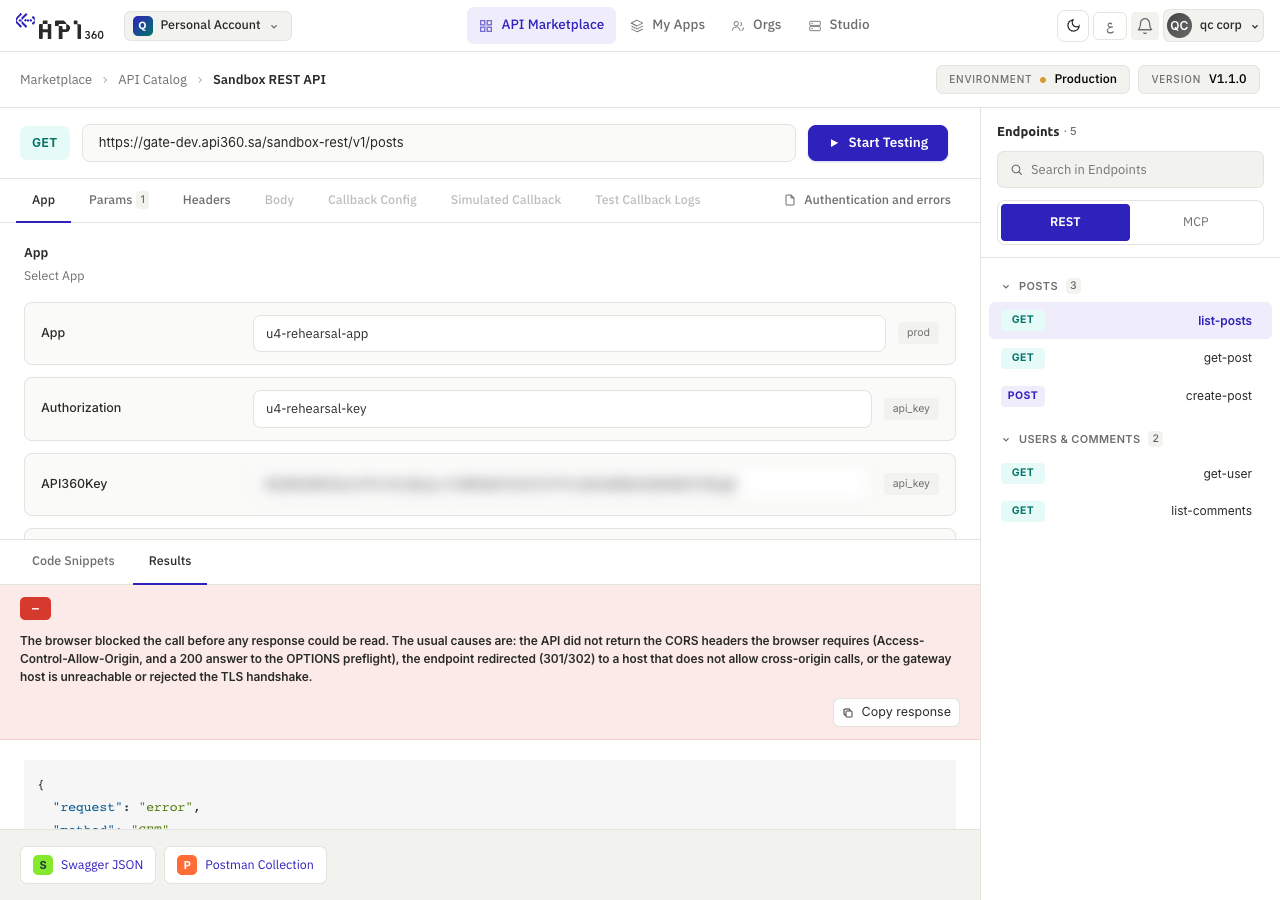
- The browser blocked the call before any response could be read. The browser refuses to hand the answer to the page when the gateway does not allow calls from the portal's address. This is what the development environment of the platform does today. Copy the cURL snippet and send the request from a terminal: the snippet is the same request.
- Product is not subscribed. The App tab shows it when none of your apps has the product. Subscribe, then add the product to an app (subscribe an app to a product).
- Please select an Authorization (API key) before testing. Choose a key in Authorization.
403withNo active subscription for this product. The gateway did not match the key to a subscription: see errors and retries.- A header you expected is missing from Response Headers. The browser shows only a few headers unless the gateway names more for the page to read. Use cURL with
-ito see them all. - Callback Config, Simulated Callback and Test Callback Logs are greyed out. The endpoint sends no callbacks, or you are not signed in (events and notifications).
Updated 2026-10-20