On this page
What you will do#
Pay for a subscription by card, understand the amount, and find the invoice afterwards. A payment takes the time of your bank's confirmation page.
Before you start#
- A subscription that waits for payment: in My Subscriptions its status is Not active, or Pending Payment after the provider approved it (subscribe an app to a product). A free product, and a free platform plan, never ask for payment.
- A payment card that your bank allows for online payments with the confirmation step of your bank (3-D Secure).
- All amounts are in Saudi riyals (SAR). The prices on product and plan cards exclude VAT; the payment page adds VAT of 15% and shows the total.
Step one: open the payment page#
From the product page, press the button that says Pending Payment, or continue straight from the dialog where you confirmed the subscription. For a priced platform plan you arrive after Subscribe & Pay.
The page shows the plan, the price, the line VAT Amount (15%) and the Total Price with VAT. Check the total before you pay.
Step two: choose or enter a card#
Choose a card under Saved cards, or choose Use a new card and fill Name on card, Card Number, Exp Month, Exp Year and CVC. Tick Save My Card if you want to use the card again. Press Pay followed by the amount.
When you enter a new card, your browser sends the card details to the payment provider, Moyasar, which returns a token. The platform receives the token and never receives the card number.
Step three: confirm with your bank#
Your bank's page opens for the confirmation. When you finish, you return to the portal, and the platform checks the result with the payment provider. If the result is paid, the subscription becomes Active and the platform creates your invoice. Any other result ends on a page that says an error occurred, nothing is activated and the order stays open, so you can try again with the same card or another one.
A card is charged only when you press Pay. The platform does not charge a card by itself: not for a renewal, not at the end of a month.
If you close the browser before the portal shows the result, look in My Subscriptions and in Billing before you pay again. If money left your account and the subscription is not active, open a ticket with the time of the payment.
Step four: find your invoices#
Open My Apps, then Billing. It has two tabs.
- Transaction History lists your invoices: Invoice Number, Created at, Amount Paid, Status and a link to the Invoice as a PDF. Total Payments adds up the amounts, which include VAT.
- Subscriptions & Usage lists your subscriptions with their plan, the date you subscribed and the status. View and Download appear on a row when an invoice from the accounting service exists for it, and Renew when the subscription can be renewed. Do not read your usage from this tab: use the app's Analytics (quotas and usage).
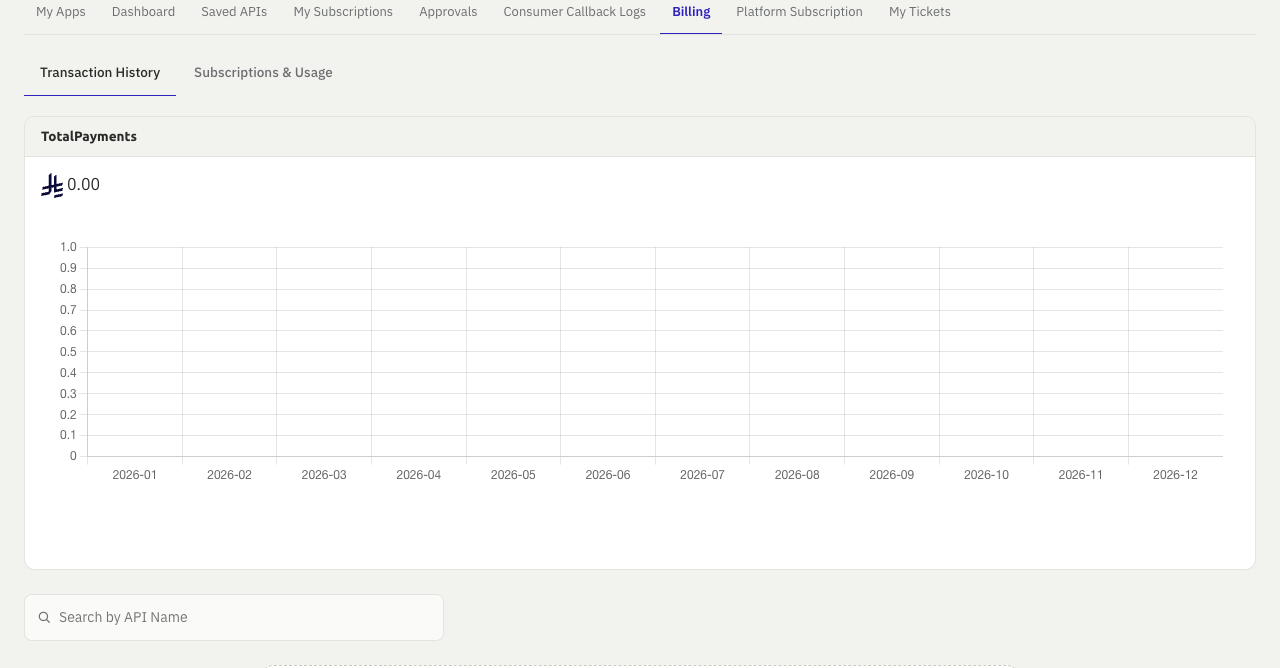
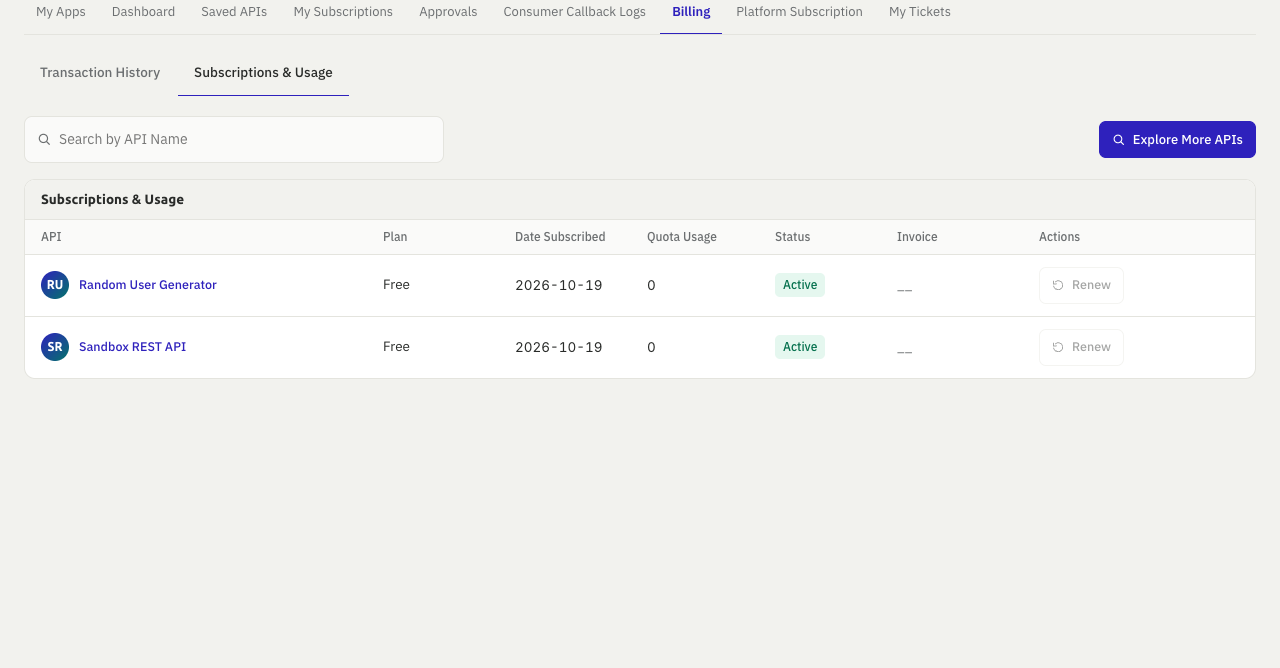
The platform creates one invoice for each payment: for a product subscription, a renewal, a priced platform plan and a top-up of an endpoint quota. The invoice number starts with INV- and the amount is the total you paid, with VAT included. The platform sends you a notification and an e-mail when the invoice is ready (events and notifications). A free subscription creates no invoice.
Step five: manage your saved cards#
Open the menu with your name, choose My profile, then My Cards. New Card saves a card, Edit and Delete change or remove one. A card marked as the default card is only the one offered first: the platform never charges it on its own.
Check that it worked#
- My Subscriptions shows the subscription as Active.
- Billing, Transaction History shows a new invoice for the amount you paid.
- You received the e-mail that the invoice is ready.
Next steps#
- Quotas and usage
- Get help and open a ticket: quote the invoice number or the time of the payment.