On this page
Before you start#
- You have an account and you are signed in (account and organisation).
- Registration created two apps for you: Default App (Testing) for Sandbox and Default App (Prod) for Production. Each holds one API key. You can use them as they are, and they cannot be deleted.
- Know the environment you need. It is chosen when the app is created and never changes. If you work in an organisation context, the app belongs to the organisation or department you switched to; the two default apps always belong to you.
- You need the permission to manage applications, and for keys the permission to manage the credentials of that environment. If you do not see the Authorization tab or its buttons, ask your organisation admin to add the permission to your role.
Steps#
Find your apps#
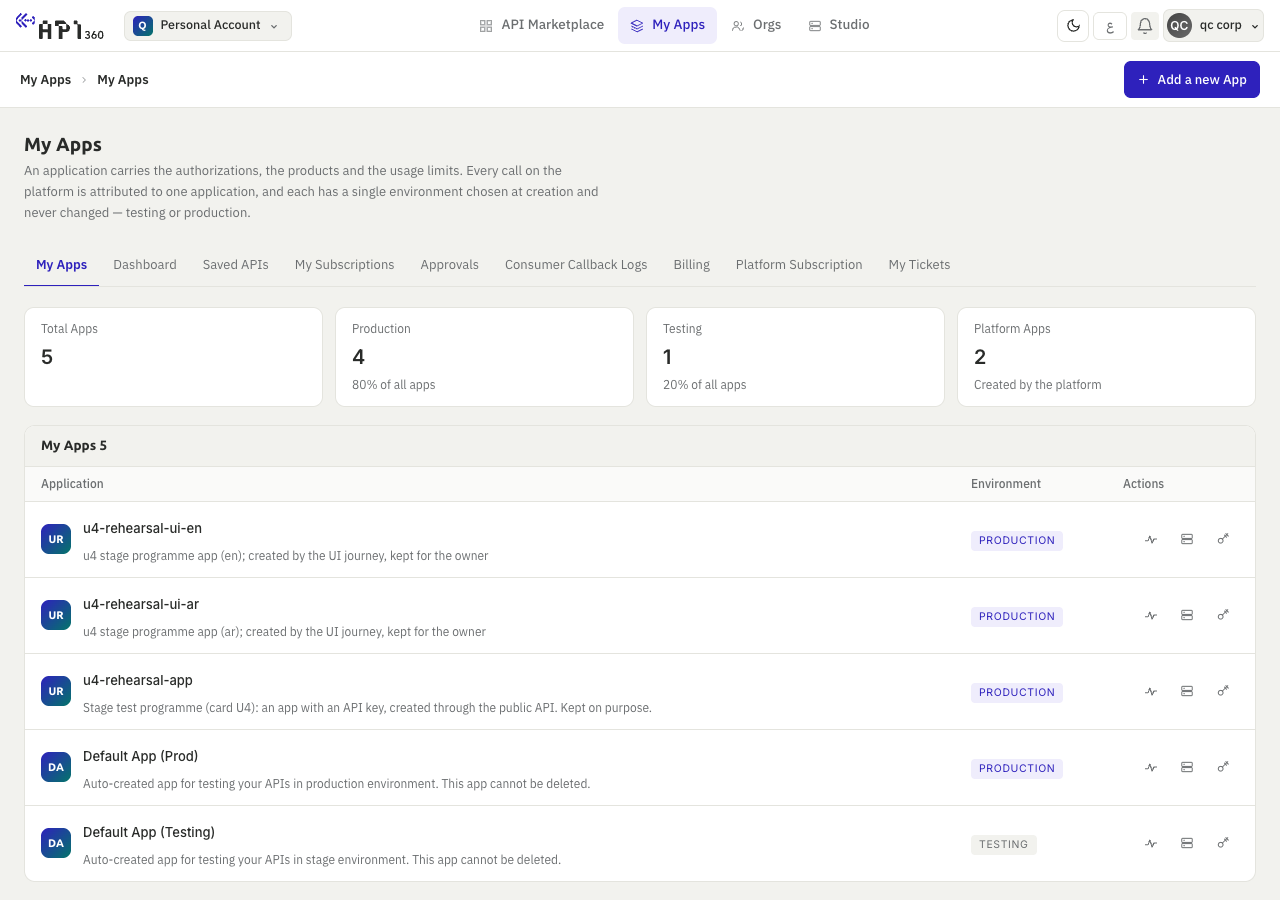
- Open My Apps. The tiles count your apps and the table lists each one with its environment tag, Production or Testing.
- Open an app to see its tabs: Analytics, Configuration, Authorization and Products.
Create another app#
Create an app when a team, a service or an environment needs keys and subscriptions of its own.
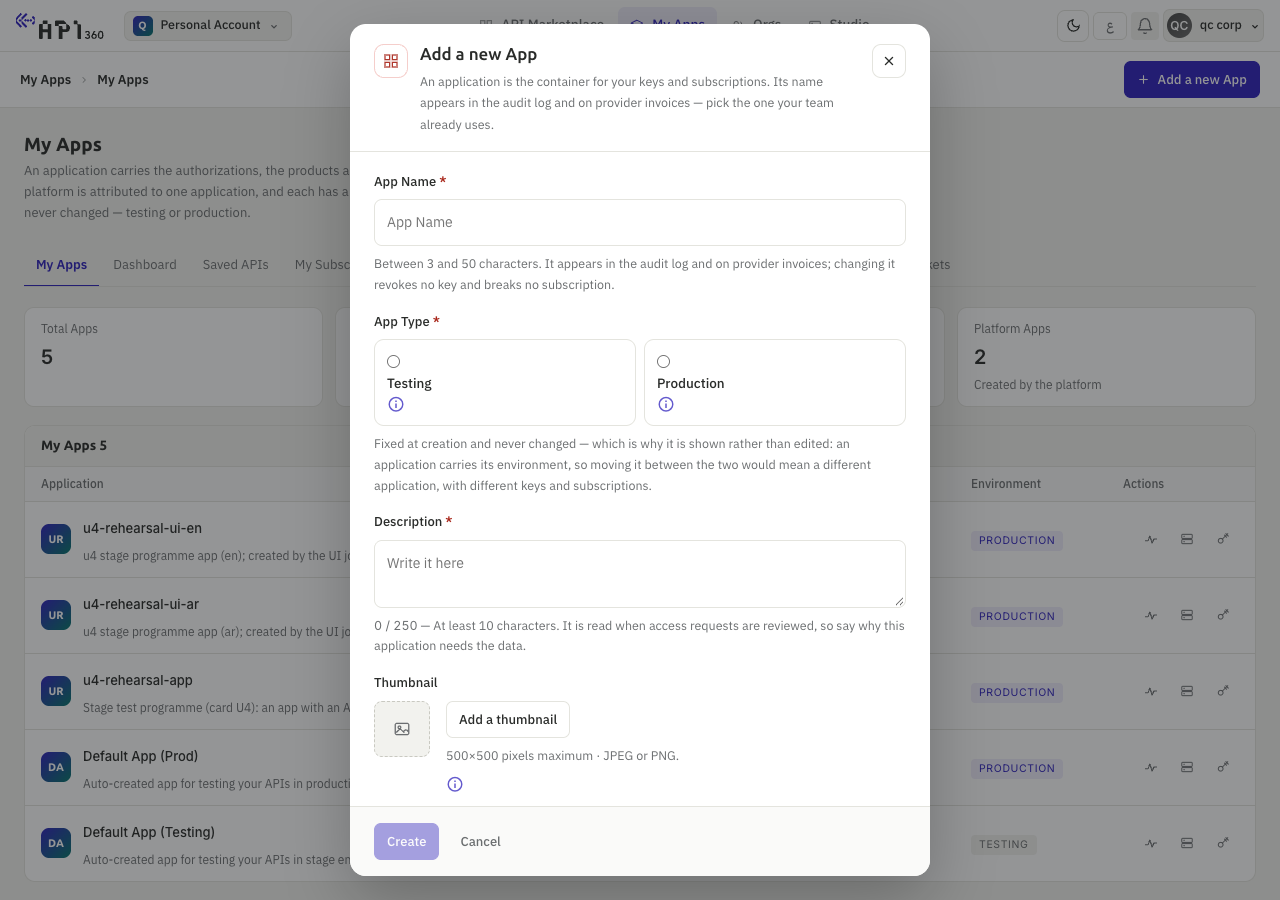
- In My Apps, press Add a new App.
- Fill App Name (3 to 50 characters) and Description (10 to 250 characters). Choose App Type: Testing for Sandbox, Production for live calls. You cannot change it afterwards; a different environment needs a different app.
- Add an Authorization Name and choose the Authorization type: API key for the
api360keyheader, or Basic auth for a generated username and password. - Press Create. The dialog shows the new credentials. Copy them with the copy button beside each value and press Done.
Find and copy a key#
- Open the app and the Authorization tab.
- The key is masked. Press the eye button (Show) to read it, or the copy button to copy it without showing it.
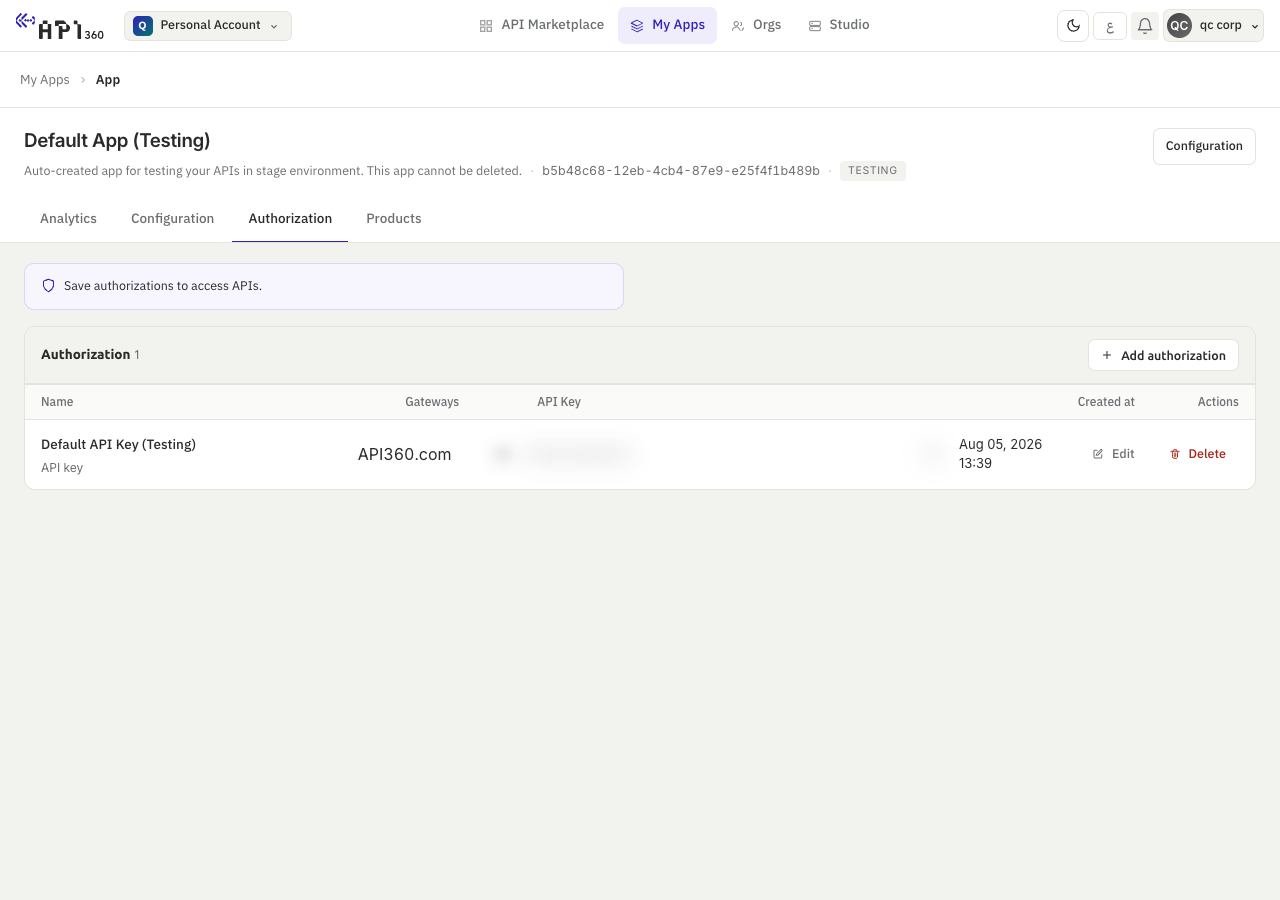
The platform keeps the key and shows it again every time you open this tab, so anyone who can open the app can read it. Treat it as a secret (keep the key on the server). A key is 64 characters, has no prefix and has no expiry date.
Add a second key and retire the first#
The first key keeps working while you add and test the second, so there is no moment when neither works.
- On the Authorization tab, press Add authorization.
- Fill Authorization Name (3 to 50 characters) and choose API key in Authorization type: this dialog preselects Basic auth.
- Press Create. The new key appears in the table.
- Deploy the new key to your servers at your own pace.
- When no server uses the old key any more, press Delete on its row and confirm.
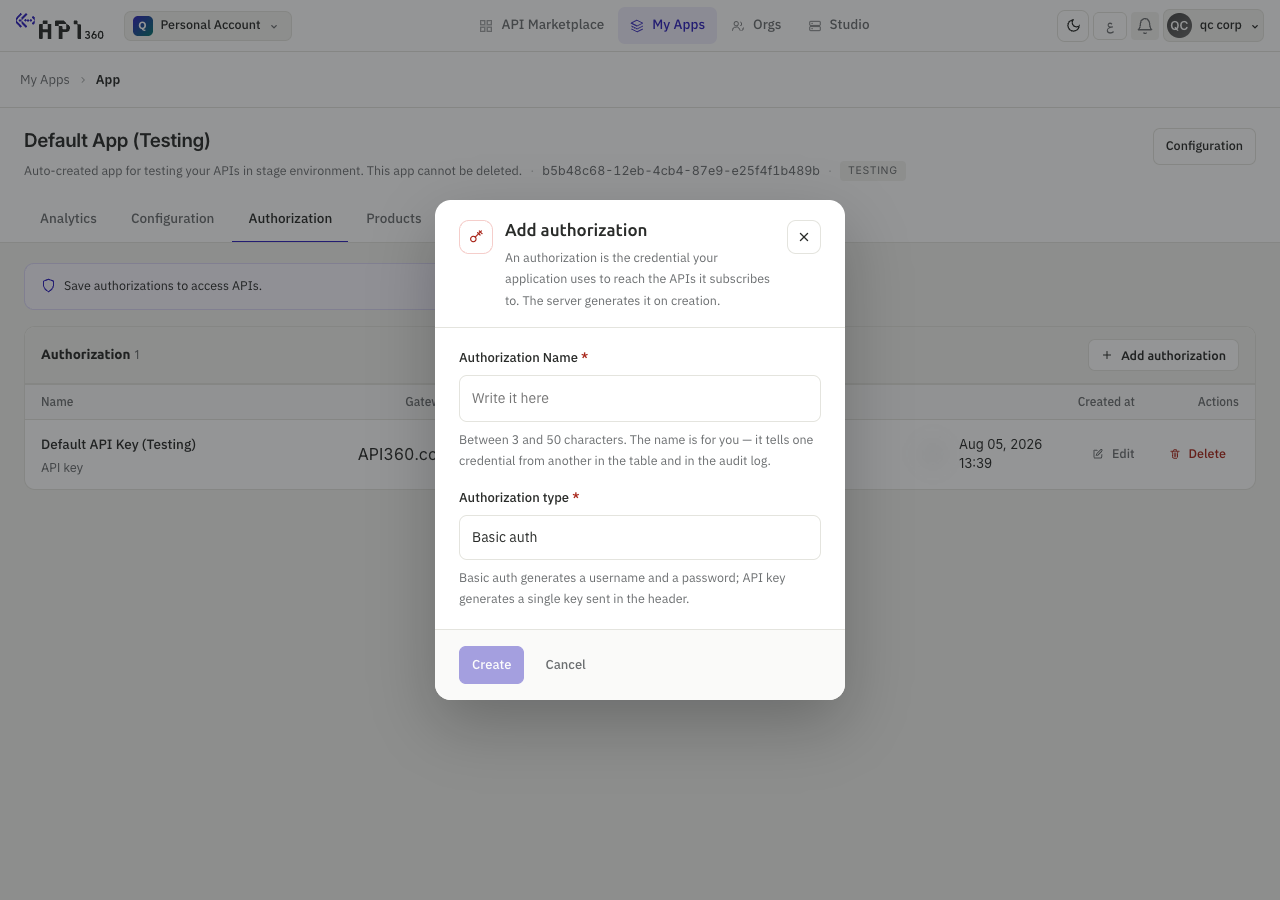
An app can hold several keys at once, of either type, and each works on every product the app is subscribed to. Edit on a row renames it. Do not use it to change the type: switching a row to the other type deletes the old credential at once and creates a new one.
Add a product to the app#
A key opens only the products that the app is subscribed to. A subscription belongs to a product and to you or your organisation; the app carries the key.
- Subscribe to the product first (subscribe an app to a product).
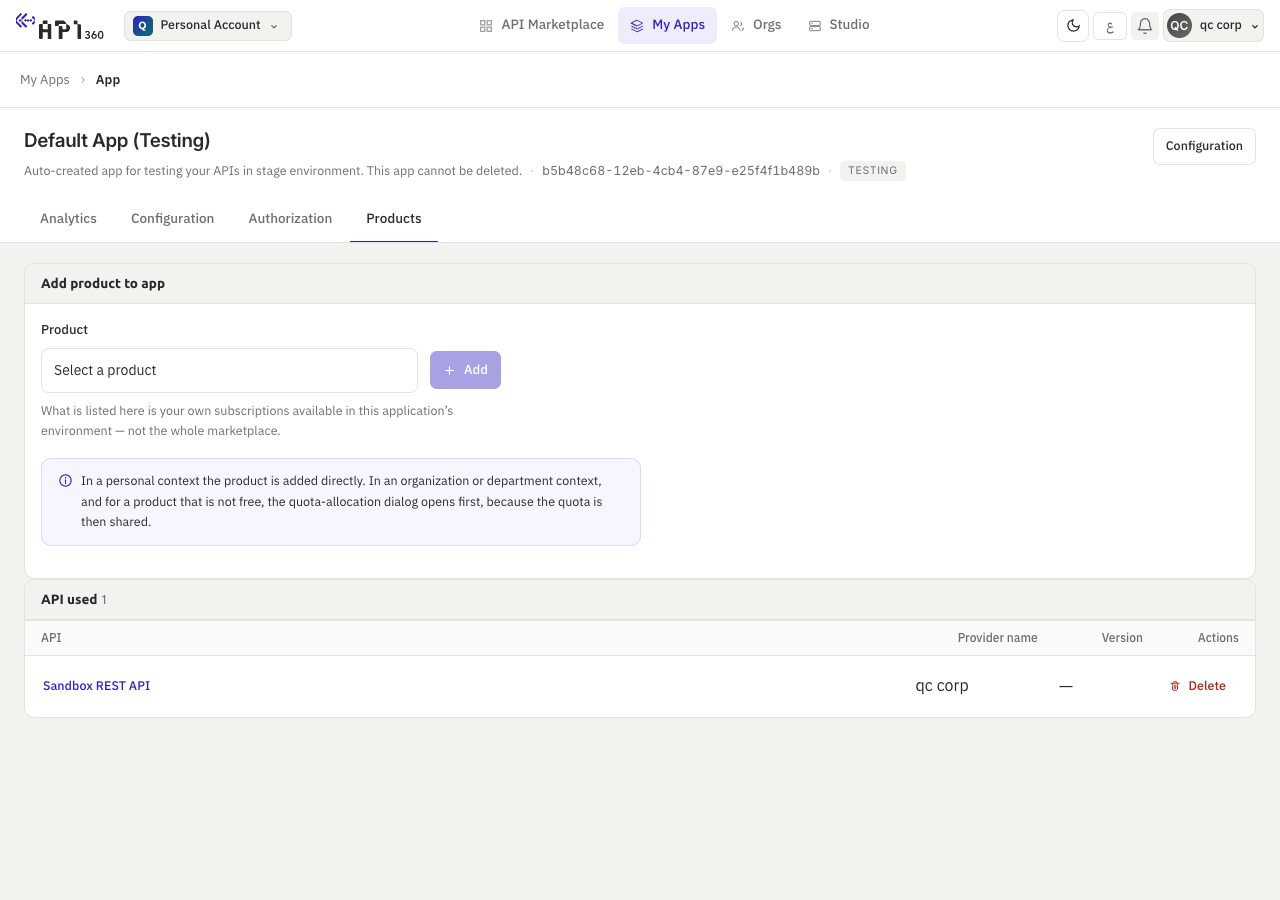
- Open the app and the Products tab. Choose the product in Select a product and press Add. The list offers only your own active subscriptions that exist in the environment of this app.
- The product appears in the table with its provider and version. Delete on a row removes the product from this app, not your subscription.
Keep the key on the server#
Never put a key in a browser, a mobile app or a public repository. A key that appears in a JavaScript bundle can be copied by anyone who loads the page. If a call must start in the front end, send it through your own server, which adds the key. The one exception is the playground, where the portal sends a request with your own key from your own session.
Check that it worked#
A call with the new key returns the same response as with the old one. Use the key in a request:
curl -sS -o /dev/null -w "%{http_code}\n" "$API360_BASE_URL$API360_PATH" -H "api360key: $API360_KEY"
After you delete the old key, a call with it gets the answer of a call with no key: 403 and {"message": "No active subscription for this product"}.
# the gateway does not recognise this key, as it will not recognise a deleted one
curl -sS -o /dev/null -w "%{http_code}\n" "$API360_BASE_URL$API360_PATH" -H "api360key: not-a-real-key"
If something goes wrong#
403withNo active subscription for this productright after you add a key or a product: check the host and the environment first, then that the product appears in the app's Products tab. Each key belongs to one environment, and the gateway can take a few seconds to learn a new subscription.- The old key still works after you deleted it: send the
X-Kong-Request-Idof that call to support (get help). - If a key may have been exposed, add a new key, move your servers to it and delete the exposed one straight away. The platform does not detect or revoke a leaked key for you.
Rotation as one action: a new key is created, it is shown once, and the old key keeps working for a period you choose before it expires.